
What to Do When Torrentio Shows No Streams or Playback Goes Black
Independent editorial guidance on compatibility, device settings, safety, and responsible use.
If “Torrentio Fora do Ar ou Tela Preta? Como Resolver Erros Comuns” describes your search, identify the last screen that looked normal. A blank results area, a stalled loading indicator, and a black picture after playback starts are different symptoms. This guide uses a known authorized sample to help you decide whether to investigate the player, source, network, or display. Begin with the symptom you can reproduce in a few steps.
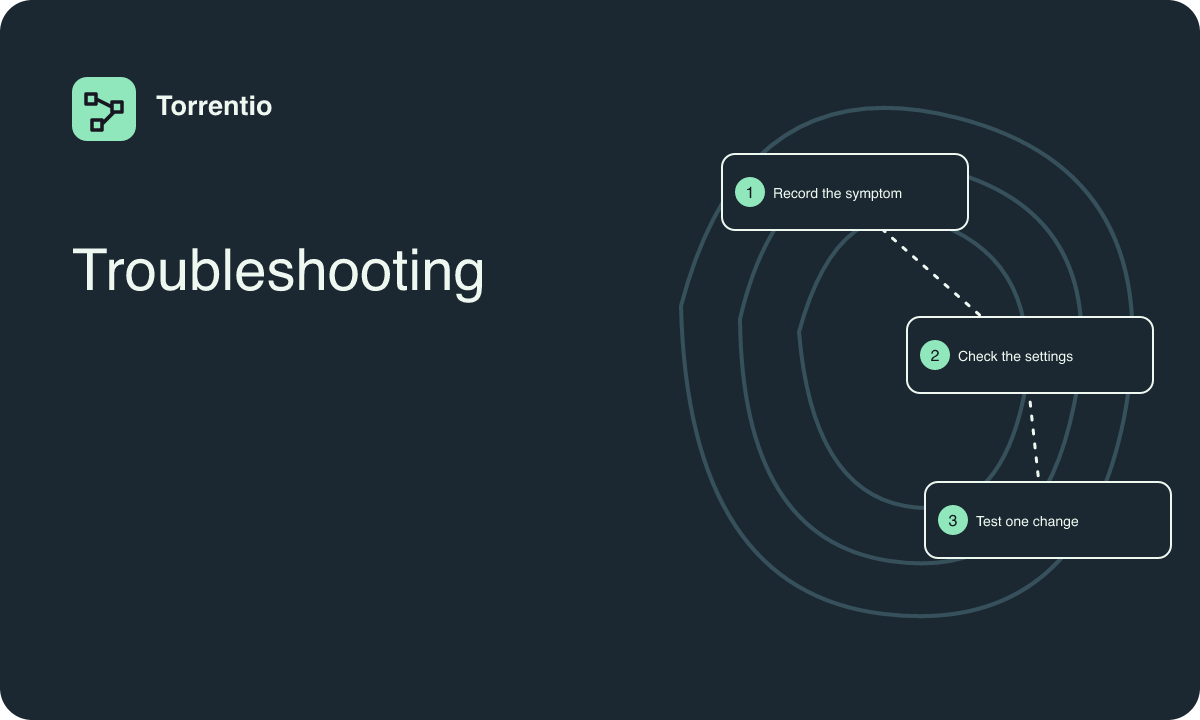
Locate the stage where the problem starts
Open the player and notice whether its menus are responsive. If the home screen fails, write down whether the app closes, sits on its logo, or opens with parts missing. If the player works, check whether the problem begins on one title’s details page or across several authorized items. If a video starts, check whether the playback clock advances and whether you can hear sound.
Be specific when describing a black screen. If playback controls still appear over black, the app is drawing at least part of the interface. If the television shows a message about an absent signal, the display connection deserves attention. If the app closes and you land on the device’s home screen, collect the app and operating system information for that failure instead of starting with a stream setting.
Choose a control sample you can repeat
Use an item you can access from a documented, authorized source. A short local clip you created can serve as a reference if the app supports that playback path. Test it at a quality you previously used successfully and let it run long enough to cover the point where the first problem appeared. Try the same action that caused the trouble, such as seeking or turning on captions.
Write two short lines describing the results. One might say that the local clip played with sound, while the authorized online sample stayed on a loading indicator. Another might say that both videos lost picture after moving to full screen. The first observation directs attention to online playback. The second makes a shared player or display setting a better first check.
Investigate missing results before changing the player
If an optional add-on has disappeared, check the area where the player lists configured components. Read the relevant support material for the installed build to understand what should be visible. If the component is present but an authorized title shows no results, compare with another title that the same provider says is available for your region and plan. This helps distinguish an item availability question from a wider failure.
Check any status information published by the service involved. A dated status notice may explain similar reports, while an individual post only establishes what another person says happened. If you see nothing that confirms an outage, keep your own report narrow. Specify which menu or source failed and when. For a missing entry, also note whether the issue started after changing devices or settings.
Investigate buffering and interrupted playback
Test another authorized online source on the same device. If both sources struggle, check the network connection the device is actually using. On a streaming box, this can differ from the connection your phone uses. Pause an ongoing download if you control it, then repeat the same short sample. Comparing the same scene helps distinguish a one-time pause from a repeatable problem.
If a source offers another quality setting, compare a lower choice. Note whether it starts faster, runs smoothly, or fails in exactly the same place. If the lower choice consistently works, you have a practical setting for now and a clue about the load the higher choice places on the connection or device. If the same timestamp fails regardless of quality, tell the provider where it happened.
Investigate a black picture or missing sound
Check that the TV is on the expected input and that the player’s interface remains visible. Play an ordinary authorized sample with familiar picture and sound. If standard video works while a higher-quality format goes black, look up the display modes supported across your hardware chain. A receiver or switch can be involved even if the television and source labels sound compatible.
For sound, inspect the currently selected output and the audio track the player is using. Try the TV speakers through a supported setting if your normal path uses a soundbar. Compare the same scene after changing only the selected output. If the playback timer advances and subtitles are visible but audio is absent, mention those observations when asking for help. They narrow the question.
Roll back recent changes in small steps
Think about what happened immediately before the issue began. A system update, moved HDMI plug, or optional configuration change can offer a useful starting point. Return a reversible setting to its previous value where supported, and repeat your control sample before touching anything else. For example, if a display mode was changed yesterday, restore that mode and use the same file today.
If you suspect an optional add-on, check the player’s documented controls for disabling it and compare your baseline. For a player-wide problem, use the repair steps documented for that platform. Check what resetting an app would erase before considering a reset. If normal viewing works after one change, record it before making any further adjustments.
Turn the findings into a focused support question
Give the device model, operating system, player build, and a brief time window. Describe the first failure, the closest successful action, and the results of one or two comparisons. For example, “The menus remain visible and the timer moves, but the picture goes black only on the higher-quality authorized sample through my receiver.” That gives a helper a better starting point than a general outage question.
Keep cropped screenshots limited to the relevant error or setting. Review them for account details, personal watch history, and private network information. If you can keep watching through your control source while you gather the rest, note that too. It tells the reader that the problem is confined to a narrower part of the setup and gives you a reliable fallback.
If a symptom comes and goes, note whether the device had just woken up or switched networks before each occurrence. Two comparable observations at different times can help a support team distinguish a persistent setting from a problem that depends on the time or state of the equipment.