
How to Check Torrentio Setup in Stremio on Android
Independent editorial guidance on compatibility, device settings, safety, and responsible use.
The search phrase “Como Baixar e Instalar o Torrentio APK no Celular Android Passo a Passo” asks for a step-by-step phone installation, but it mixes together an Android application package and an add-on setup. Begin by getting the supported Stremio player running on your phone. Then check what the player and the add-on project document for Android. This approach gives you a working playback test before you make changes that involve another service.
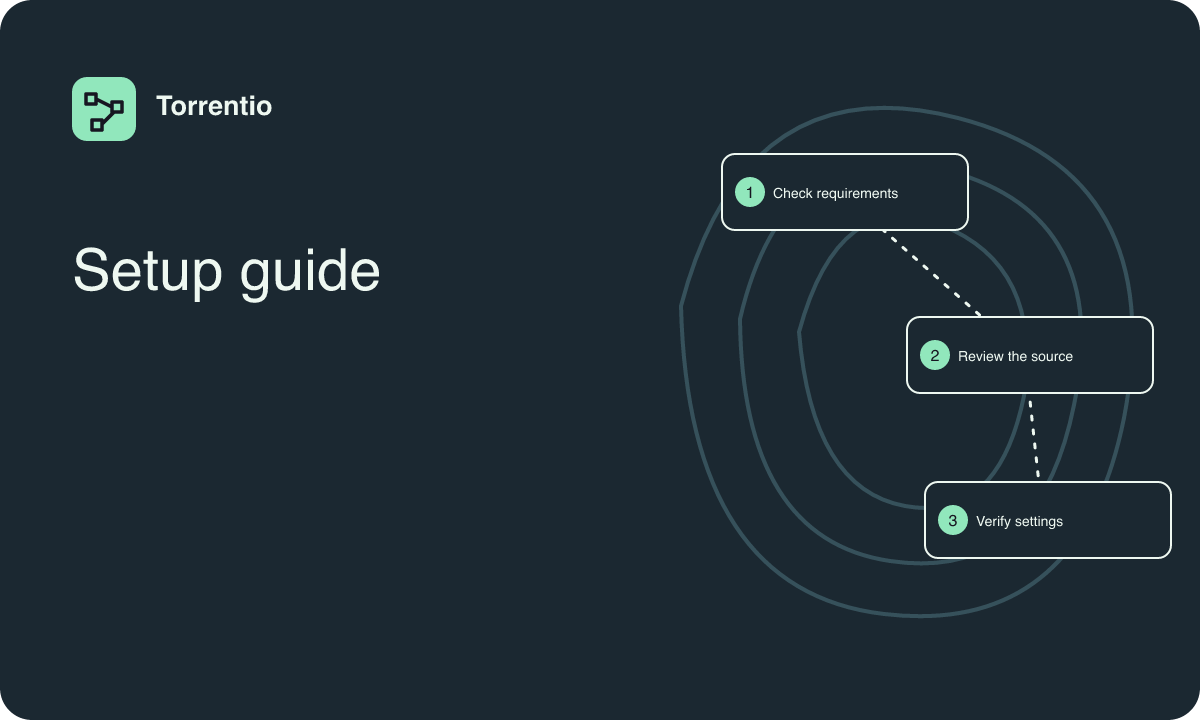
Identify the phone and its supported installation path
Open the phone’s settings and find its model and Android release. If you use a managed work profile or a family device, check whether you are allowed to install apps in the profile where you plan to watch. A device can have enough storage and still restrict installation because of its management settings. Resolve questions about those restrictions with the device owner or administrator.
Use Stremio’s documented distribution path for that model and region. When the path points to a store, compare the listing you reach from the documentation with the listing on the phone. If a browser page offers a similarly named file, put it aside until you can establish who published it and why it is needed. Keep Android’s installation and scanning protections active while you work.
Make sure the player handles an authorized sample
Open the player before making any add-on changes. Pick a sample from a source that gives you permission to watch, such as a home video you are allowed to use, in a playback path supported by the app. Let it play for a few minutes. Turn the phone sideways, pause, seek, and return to the playback screen after briefly opening another app. This catches issues that an installation confirmation alone will miss.
Note whether the test uses the speaker or Bluetooth headphones, and which connection the phone is on. For example, if audio disappears when you put the phone down, repeat the same moment with the speaker. That comparison gives you a better sense of whether the underlying issue is Bluetooth, playback, or background behavior. Save the sample for later checks.
Find the add-on controls in your own interface
Look for the add-on management area described in the documentation for your player build. A tutorial filmed on a desktop can show controls that appear in a different location on a phone. If the layout differs, record the wording you can see and look up that wording in the player’s help material. Consider whether you are using an app screen, a browser screen, or an operating system dialog before proceeding.
If the add-on project documents support for your setup, use its published workflow and check each screen for the expected name and purpose. If you only find third-party tutorials and cannot establish the origin of the setup, leave the player at its working baseline. A familiar-looking icon or an installed label alone gives you little information about who maintains what you enabled.
Review prompts before making changes
A phone can show several kinds of permission prompts in quick succession. Android handles device access, the browser may ask whether it can open another app, and the player may ask you to approve an optional component. Read the name in the prompt and consider whether the request matches the action you intend. If you only meant to read documentation and the screen asks to install software or change a system setting, close the prompt and retrace your steps.
Check any optional service separately. Find its own description of what a supported integration does and what data it handles. Consider who can see activity on a device shared with family or used for work. Use the smallest set of features you need, and keep sensitive screens out of screenshots used for help.
Check how the setup behaves on Wi-Fi and mobile data
Repeat the original authorized sample after any change. Start on a stable Wi-Fi connection and make a note of picture, sound, and time to start. If you normally watch away from home, check Android’s mobile data and battery settings before doing a short cellular test. Keep that test brief if your plan charges for usage. Playback quality choices can make a noticeable difference on a limited connection.
For example, suppose a clip works at home but pauses repeatedly on a commute. First compare a lower quality option from the same authorized source on the same connection. If you still see the issue, note whether it follows a network change or a screen lock. Describe those conditions when looking for help. They matter much more than the number of times you tried the setup.
Undo one change at a time when something fails
If the player behaves differently after a documented add-on change, return to its configuration area and check whether the player provides a supported way to disable or remove the optional component. Then repeat the sample. Leave other settings in place so the result tells you something. A full reset can erase preferences or viewing history, making it a poor first step for a single integration problem.
If you cannot return to the previous state using the in-app controls, check the player’s own recovery information for that Android build. Write down what the interface currently says and when the change happened. For a phone-wide issue that affects several apps, start with device guidance. For an issue isolated to one add-on, the relevant project documentation is more likely to address it.
Decide whether you need further setup
Your phone is ready for ordinary viewing once the supported player can handle the material and controls you need. If you still want an add-on, identify what it would add and verify support before committing to it. Keep a short note of the app version shown on your phone, the documented distribution source, and the last successful playback test. You can use that note the next time a store update or operating system change moves a setting.
If you need help now, provide the phone model, the Android release, the step where you stopped, and a small description of your authorized sample. Say which result you expected and what appeared on the screen. That gives a helper enough context to discuss your setup without seeing account screens or your personal viewing history.
If you are helping someone else set up their phone, have them read each prompt on the device and tell you which action they are comfortable taking. That leaves them able to recognize the same screen when an update moves the controls or asks them to review a permission again.