
Casting Stremio Playback to Chromecast and Compatible TVs
Independent editorial guidance on compatibility, device settings, safety, and responsible use.
The search “Como Transmitir o Torrentio no Chromecast e Smart TV sem Atraso” expresses a familiar goal: start a video on a phone and watch it on a larger screen without constant interruptions. Delay can come from device discovery, the transport method, or playback itself. Before changing any add-on settings, find out whether the sender, receiver, and authorized source support the same playback method and test them together with a familiar video.
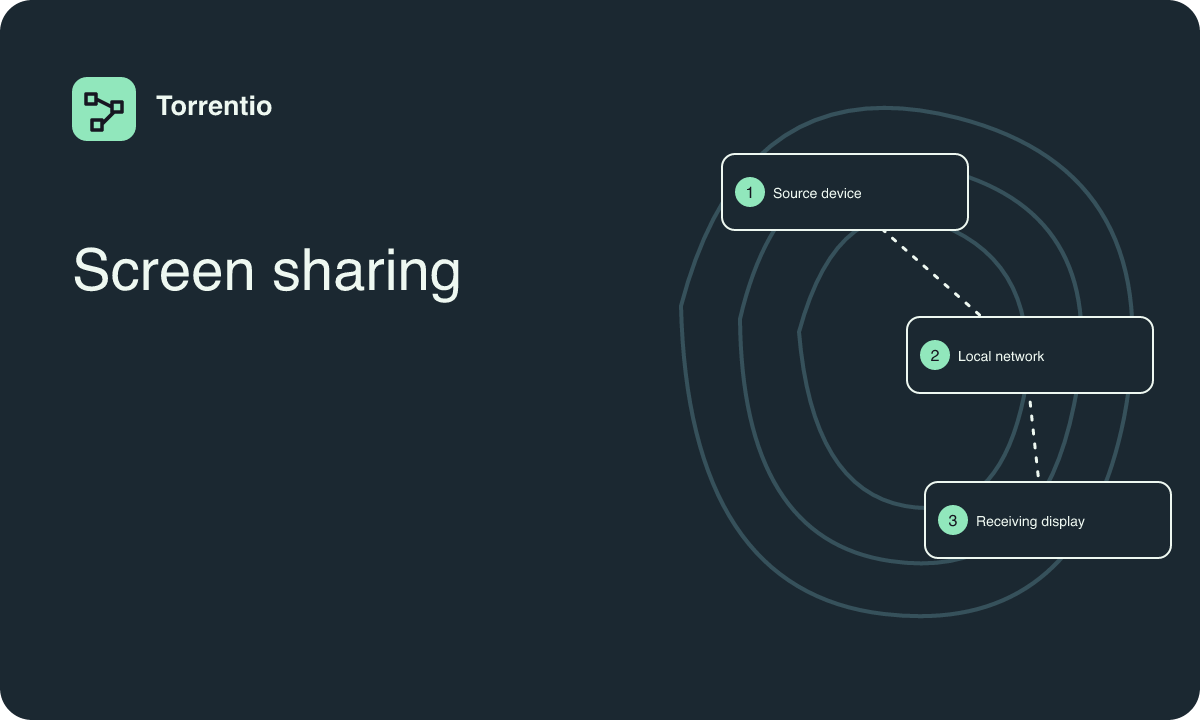
Decide whether you are casting, mirroring, or playing on the TV
In a documented casting workflow, a sender asks a compatible receiver to play media. Screen mirroring makes the television display what is on the sender’s screen. Opening a supported provider app on the television starts playback on the TV device itself. The controls, device permissions, and behavior when the phone goes to sleep can differ between those methods.
Record which method you want to use. If you want to leave your phone free for other tasks, check whether your app and receiver support direct casting for the material involved. If the TV already has a provider app, compare playback there to establish a reference. Consult the device and player guidance for the specific receiver. A smart TV marketed as compatible with one type of wireless display can have different support from an external Chromecast device.
Get the sender and receiver onto the intended network
Verify the actual network name on the phone or computer and on the receiver. A phone that switched to cellular or a TV that moved to a guest network may still have internet access but fail to discover other devices. Check the network conditions that the receiver documentation calls for. A guest or building network may prevent devices from seeing one another by design.
If your home network has several access points, find out whether the problem changes when the phone is used near the TV. Record whether discovery fails entirely or repeatedly drops after you move. If you are on a managed network, use its approved device connection process. A supported HDMI connection or TV app may be simpler where direct device discovery is unavailable.
Establish that casting works with an authorized sample
Use a short licensed video from an app or source that explicitly supports your receiver. If the sender presents several televisions with similar names, confirm the one in front of you before starting. Test whether the picture appears, the television plays sound, and the sender can pause and stop playback. Try seeking once and then wait to see whether the timings on the two screens settle.
For example, if the cast icon appears and the receiver opens but the video never starts, write down both observations. Discovery and session launch worked, so you can look more closely at playback support. If the receiver never appears in the sender’s list, check whether the sender has the device discovery permission its documentation describes. Repeat the same sample after making one relevant change.
Check whether the intended Stremio setup supports the same path
Look for casting instructions that apply to the exact Stremio build and receiving device. For optional add-on results, check what the project documents about compatible playback and what the authorized source allows. A video that works on the phone may be presented differently when the receiver takes over playback. A supported control sample therefore establishes that casting can work in the room. Check the planned source separately before you rely on it.
Try a short authorized item through the intended path when the workflow is documented. Observe picture, audio, and captions from the receiver. If the player has a caption menu on the phone, see whether its choices carry over to the television. If a particular source has no documented support for your receiver, use an authorized option you can verify on the TV itself.
Measure the delay by describing when it happens
A pause before the receiver appears points toward discovery. A long wait after you press Play may involve session startup or source loading. A delay between dialogue and lip movement is an audio synchronization issue. Describe the point where you notice the delay and whether it repeats at the same scene. That is more useful than describing the whole session as slow.
Compare the same authorized sample at a lower quality, if the provider offers one. Keep the sender and receiver in their original positions while you try it. Then compare playback in a supported app on the TV if available. If direct TV playback stays in sync while casting does not, check the sender and receiver’s documented behavior for that route before changing television-wide sound settings.
Keep control of the screen and session
On a shared network, verify the receiver’s visible name before casting. Stop the session using the documented control and confirm that playback ended on the television before moving to another room. If you use screen mirroring, think about which notifications or open windows the receiver might display. Close those windows or use a supported notification setting if you intend to share your screen.
Check who can control the session from other devices. A household may want convenient controls, while a guest network or shared accommodation can create a different expectation. Use only the discovery permissions the sender needs for its documented function. When you no longer need that function, check your device settings for how to review the permission again.
Save a practical fallback for the next viewing session
Write down which sender app, receiver name, and authorized source worked together. Note whether captions and phone controls responded as expected. If you found that a provider app on the TV worked better for a particular authorized title, keep that path in your notes. You can still use casting on sources that passed your test.
If help is needed, describe whether the receiver is missing, appears but never starts the video, or plays with a timing problem. Include the sender operating system, receiver model, and the successful control test, if you have one. This separates a device discovery report from a playback compatibility report. It also gives the next person a concrete comparison without exposing the names of nearby devices or a complete list of what you watch.
If you have two receivers, compare them only after one proves reliable with the sample. Use the same sender and documented app on both. That makes a naming or device compatibility difference easier to see without changing the media, connection, and settings at the same time.