
Checking a Torrentio Downloader Code Claim on TV Devices
Independent editorial guidance on compatibility, device settings, safety, and responsible use.
If you searched for “Código Downloader do Torrentio para TV Box e Fire TV Oficial,” you may have found a page that presents a short number as proof of a recognized installation route. A code is a shortcut whose meaning depends on the tool that accepts it. Before using any shortcut, establish what you intended to install, who documents it, and whether a separate package makes sense for your device at all.
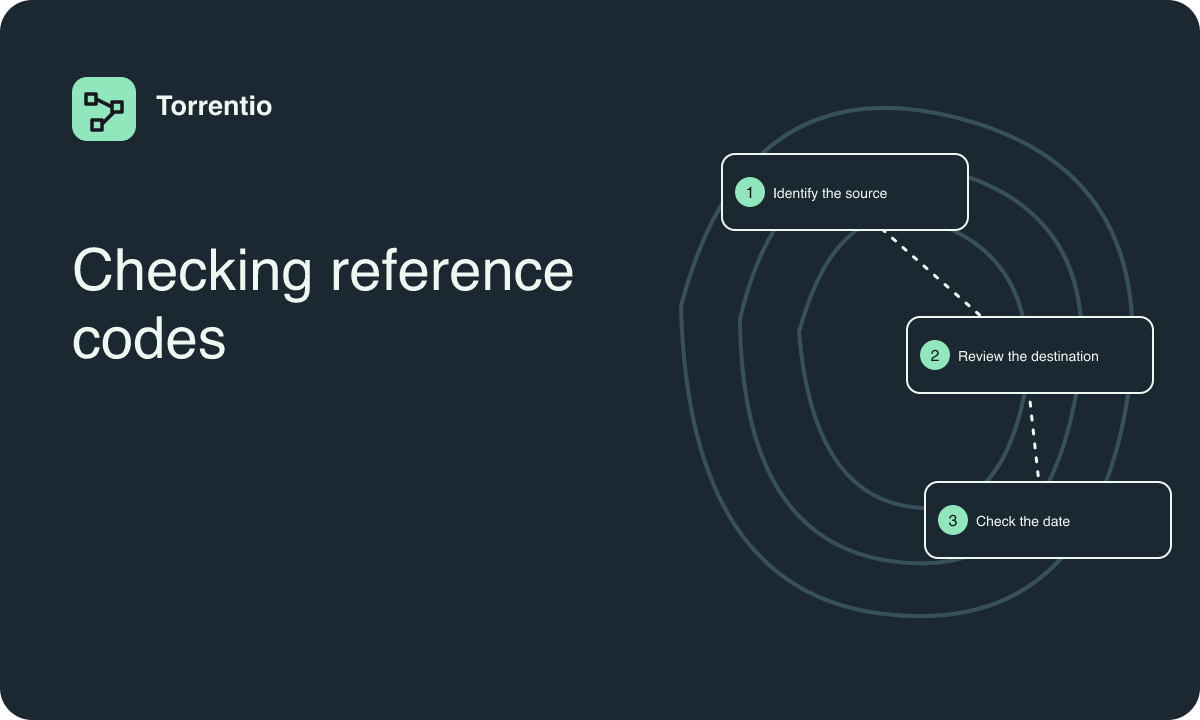
Start with the task a code is supposed to accomplish
Describe your original goal in one sentence. You might want a player on a streaming stick, a way to check an existing add-on, or a fix for a television that stopped showing a particular menu. Each task has a different starting point. An instruction that begins with an unexplained number skips the question of what you would be adding to your device.
For a player installation, look up the documented distribution channel for your operating system and region. For add-on management, open the supported player and see where its documentation places those controls. For a playback problem, test an authorized item that worked before. Once you have a clear task, you can compare any offered shortcut with what that task actually requires.
Identify which device would open the code
Find the operating system and model in the settings of the device you are using. A Fire TV Stick, a box designed for Android TV, and a television running its own operating system can have different stores and download tools. A guide may call all of them a TV box while showing menus that belong to only one platform. Verify that store and app instructions apply to the actual device showing the prompt.
If you can already open the player, record the build shown in its app information. That tells you which documented workflow to check. A missing add-on menu may reflect the player build or platform, so a code promoted as a universal solution needs convincing evidence about what it does and why it applies.
Establish what the shortcut represents before acting
Read the description surrounding the code. It should explain which tool interprets it, what destination it represents, who controls that destination, and why it is part of the supported workflow. Check for independent documentation issued by the relevant player, platform, or project. A familiar name on a download page and repeated claims across tutorials can all originate from the same unverified source.
For example, suppose a guide says a code sets up an add-on but describes opening an Android package installer immediately afterward. Compare that with the host player’s explanation of add-on management. If you cannot find support for that relationship, leave the code unused. You can check the documented app listing directly without entering the number or trying to work backward through an unfamiliar download chain.
Distinguish an app installation from an in-app change
Installing a package changes which software runs on the device. An in-app add-on action belongs to the player’s own interface and has a different scope. Before approving either, read the screen on which the request appears. Check whether it shows the operating system installer, a browser prompt, or the player. That distinction helps you see whether the action matches the task you set out to complete.
A television can make dialogs harder to inspect. If you cannot read the full prompt from your viewing position, pause and consult the guidance on a more readable display. Keep installation restrictions and device protections in place. Where the platform provides a supported player source, use it directly. Where the relationship remains uncertain, a provider application with documented support can keep ordinary viewing available.
Handle a shortcut you already tried
If you entered a code and saw a destination or a download prompt, close the prompt if you did not intend to install anything. Use the device’s normal interface to review what happened. Check the download history or installed-app list through the controls documented for that platform. A download and a completed installation are separate events. Write down which one you observed before deciding whether anything needs attention.
If an unfamiliar application appears, consult the platform’s guidance for reviewing and removing apps and for checking any permission changes. Record the displayed app name and the approximate time of the event. Keep screenshots focused on those details. For a household device, let the person who manages it know what changed so they can compare it with the apps and settings they expect.
Verify a usable route after rejecting a questionable shortcut
Return to the device home screen and use a known supported player or provider app. Open a short authorized sample, confirm picture and sound, and make sure the remote still navigates as expected. If you were checking add-on support, leave the playback result in your notes and continue with the player’s documentation when you have time. You have a clear baseline for comparison if another tutorial proposes a change.
If you still need help, write down the device model, the app you intended to use, and what appeared after the code was mentioned. You can describe the type of prompt without sharing the shortcut itself. Ask one focused question, such as whether the model has a documented player installation path in your region. That gives a helper room to answer without endorsing the code.
Keep the process easy to repeat
Bookmark the device help and the player’s documented distribution information in your own browser if you find them useful. In a household note, identify which remote opens the streaming device and which app you successfully tested. Those details are easier to maintain than a number whose destination might be unclear to the next person who sees it.
Before changing the setup later, compare the current screen with your note. If an update moved a menu or a store listing changed, check the relevant source again. The goal is a path you can explain from the device home screen to authorized playback. Once you can repeat it, a separate shortcut only earns a place when its purpose and origin can also be established.
If you pass a guide to someone else, explain the supported path you found and give them the name of the device it applies to. A note written for a particular streaming stick keeps another reader from treating its menus as universal instructions for a different box or television.