
Checking Stremio and Torrentio Setup on Amazon Fire TV Stick
Independent editorial guidance on compatibility, device settings, safety, and responsible use.
A search for “Como Instalar o Torrentio no Amazon Fire TV Stick Passo a Passo” can show instructions for several generations of Amazon hardware and menus. Begin on the Fire TV Stick you plan to use and verify how the player is distributed for that model. Once ordinary playback works with an authorized source, check the documented add-on workflow. This sequence keeps an unfamiliar install prompt from becoming the first thing you see on the television.
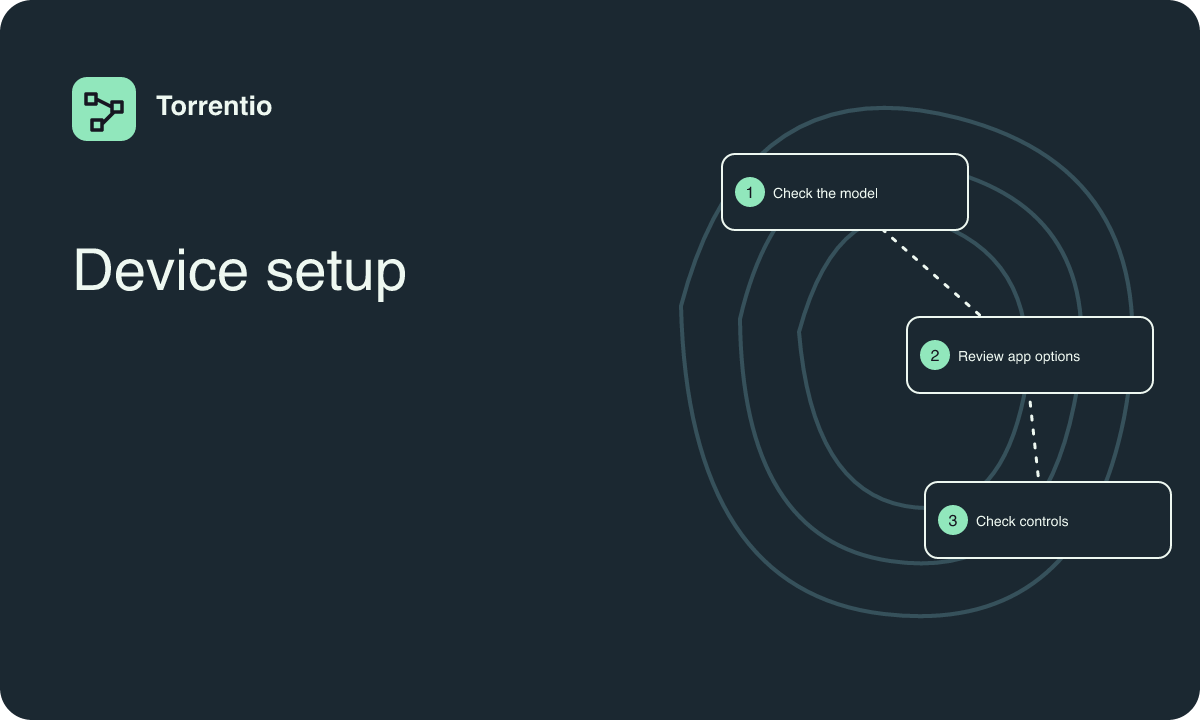
Identify the stick and confirm which home screen is active
Use the Fire TV remote to open the stick’s home screen. Find the device information in its settings and note the model and software version as displayed. If the TV also has its own built-in apps, make a note of the HDMI input you use for the stick. The difference matters when one remote can control the television’s volume while the other changes inputs or launches apps.
An older tutorial may start from a menu with a different layout. Compare the purpose of a control with the description in Amazon’s device help, and use the names shown on your own screen. If the guide describes settings you cannot find, check whether the guide applies to your device generation before changing unrelated options. The model and software details will help you with the next check.
Look for the player through the documented distribution channel
Use the Fire TV store or other distribution route documented for the player on the model and in the region you use. Compare what the player’s documentation describes with the actual name shown on the Fire TV screen. If the store offers several similarly named entries, return to the documentation and check which listing it identifies. A product name in a video caption gives you little evidence about a specific listing.
If you cannot confirm a supported way to get the player, leave the device’s installation protections in place. Check whether a provider app already available for your stick handles the content you can access. You can also compare a different supported device attached to the same screen. These options give you a usable playback path while you establish whether your preferred combination is documented.
Start with the Fire TV controls you will use every day
Open the supported app from the home screen and run a short authorized video. Use the directional controls to select it and see whether you can open captions, pause, and navigate back to the app’s start screen. Repeat one of those actions after the screen has been idle. This helps catch remote focus trouble that can look like a stalled player from across the room.
Check the power and input arrangement if the stick restarts or disappears during the test. With the manufacturer’s recommended setup, verify that the television returns to the correct HDMI input after a normal restart. If the problem happens regardless of the app you are using, make a note of that. It directs you toward the device or display connection before you start investigating the add-on.
Check where add-on management happens
Read the player documentation for the Fire TV build and determine whether it describes any add-on controls. Review the relevant project guidance for the integration you are considering. If guidance involves another device, verify how the player says changes become visible on Fire TV. Once you follow a documented workflow, use the TV screen to see whether the expected entry appears.
Keep browser prompts and TV interface prompts distinct. If a guide mentions a code or a download before explaining why an app package is required, verify the relationship independently. With a working player already in place, you can read the documentation without making further changes. If you cannot establish a supported setup, keep using the authorized playback route you tested.
Adjust playback to fit the stick and your display
Choose a quality the stick, network, and display can handle. Begin with a short authorized sample at an ordinary quality. If the same provider offers a higher-quality option, compare it once using the same picture and audio path. Note whether it starts, stays in sync, and returns to the menu. A title that starts quickly and resumes reliably usually makes a better household default than one that sometimes stops during a scene.
If you use a soundbar or receiver, check the selected audio output and try a familiar dialogue scene. Watch for whether problems begin after the TV changes display mode or after you switch audio tracks. Use the platform and display documentation before changing output settings. Adjust one setting at a time so you can return to the original position by remote if the behavior worsens.
Review shared-screen settings before handing over the remote
On a shared stick, find the household profiles or access controls supported by your setup and inspect what recent activity is visible. Choose caption size and language with someone who will actually use them. If the controls are hard to reach while a title plays, show household members the path from the playback screen once and leave a short note near the remote.
Review any permission request the first time it appears. Compare the requested access with the function you are opening. If a prompt is unfamiliar, read its full text before deciding and check the documented reason for the change. You can also record the prompt wording without capturing the rest of the screen. That gives you a way to get help while keeping account information private.
Preserve a short route back to working playback
Write down the Fire TV model, active input, player source, and the steps you used to start a successful authorized sample. If you enabled an optional component, add where you found it and how to check its status. These notes make it easier to repeat the useful part of the setup after a television input change or an update.
If you need help, say whether the problem is finding the app, moving around with the remote, seeing the add-on, or starting the video. Give the earliest screen where the problem appears. Someone familiar with Fire TV can then focus on the right part of the setup without repeating every step you already tried.
If the household has more than one stick, label the notes by room or screen. That makes the correct remote, input, and player listing easy to identify, especially when an older stick and a newer one show different menus or have different playback capabilities.